Connect Dostup.io on Android
Install strongSwan VPN Client on your Android phone or tablet, then follow the steps below to set up the connection.
What you need
Open Connection settings in your Dostup.io dashboard. This section contains your server address, login and VPN password. You will need them in step 2.
The icon beside each value copies it. The eye icon beside the password reveals it. Use these buttons to avoid typing the details by hand.
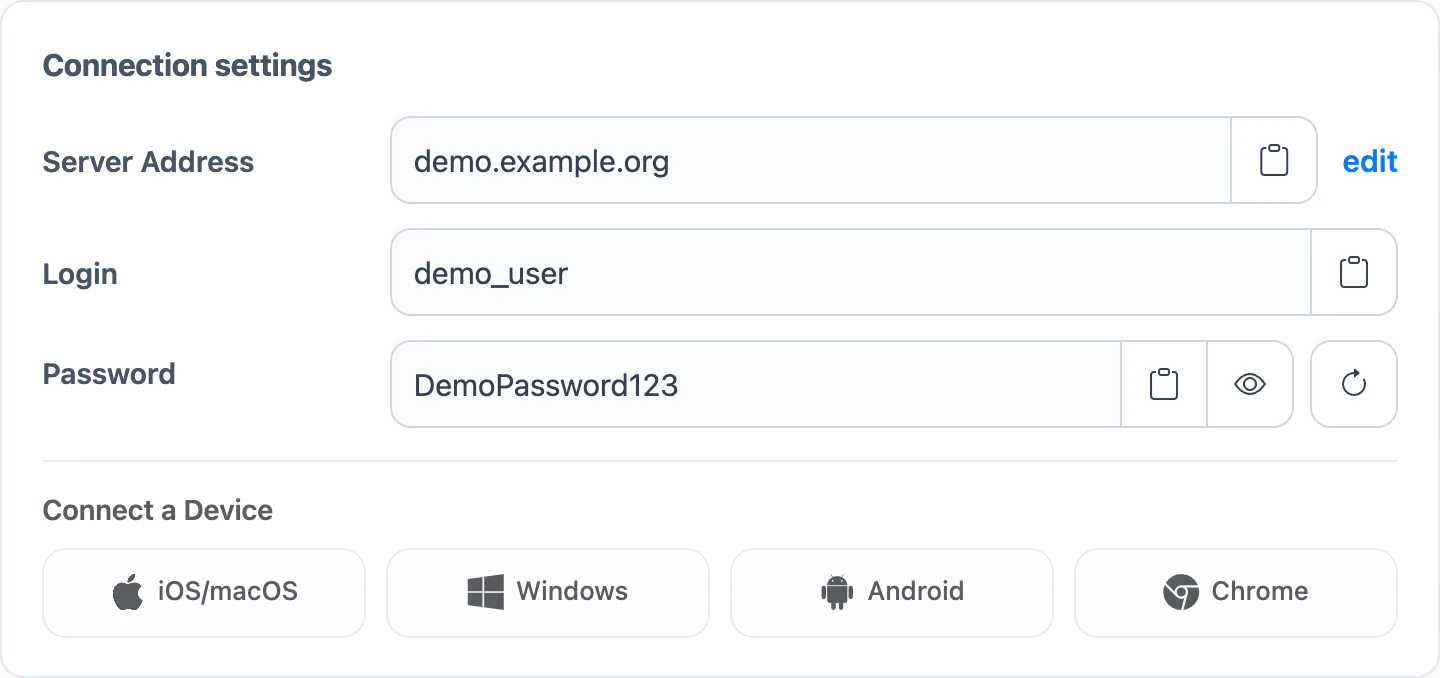
For a quick setup guide in your dashboard, choose your platform under Connect a Device.
Step 1. Install strongSwan
- Install strongSwan VPN Client from Google Play.
- On your Android device, open strongSwan and tap ADD VPN PROFILE.
Step 2. Set up the profile
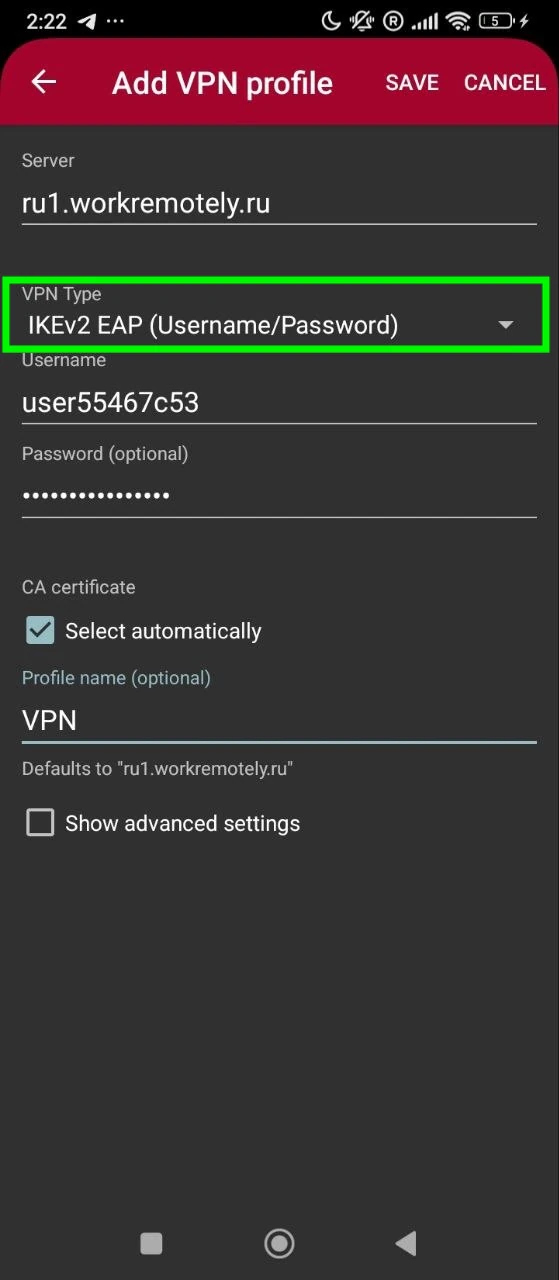
Copy the server address, login and password from Connection settings in your dashboard and paste them into the strongSwan profile fields on Android. Fill in the remaining fields using the table.
| Field on your device | What to enter |
|---|---|
| Server | Copy Server Address from your dashboard |
| VPN Type | IKEv2 EAP (Username/Password) |
| Username | Copy Login from your dashboard |
| Password | Copy Password from your dashboard |
| CA certificate | Keep Select automatically checked |
| Profile name | Any value |
Leave the other application settings unchanged and tap Save.
Step 3. Connect
- Tap the saved profile.
- When Android asks to allow the VPN connection, confirm the request.
- Wait for the profile status to change to Connected.
If it does not connect
- Authentication failed
- Copy the username and password from Connection settings in your dashboard again. Check capitalization and remove extra spaces.
- The profile is saved but will not connect
- Check the server address and allow strongSwan to create the Android system VPN connection.
- Android stops the application
- Allow strongSwan to run in the background in the device's battery settings.
If the problem continues, email support@dostup.io. Include the manufacturer, model, Android version, and the error message from the strongSwan log, with personal information removed.