Connect Dostup.io in Windows
Add a VPN connection in Windows settings and enter the details from your Dostup.io dashboard. These steps work on Windows 10 and 11.
What you need
Open Connection settings in your Dostup.io dashboard. This section contains your server address, login and VPN password. You will need them in step 2.
The icon beside each value copies it. The eye icon beside the password reveals it. Use these buttons to avoid typing the details by hand.
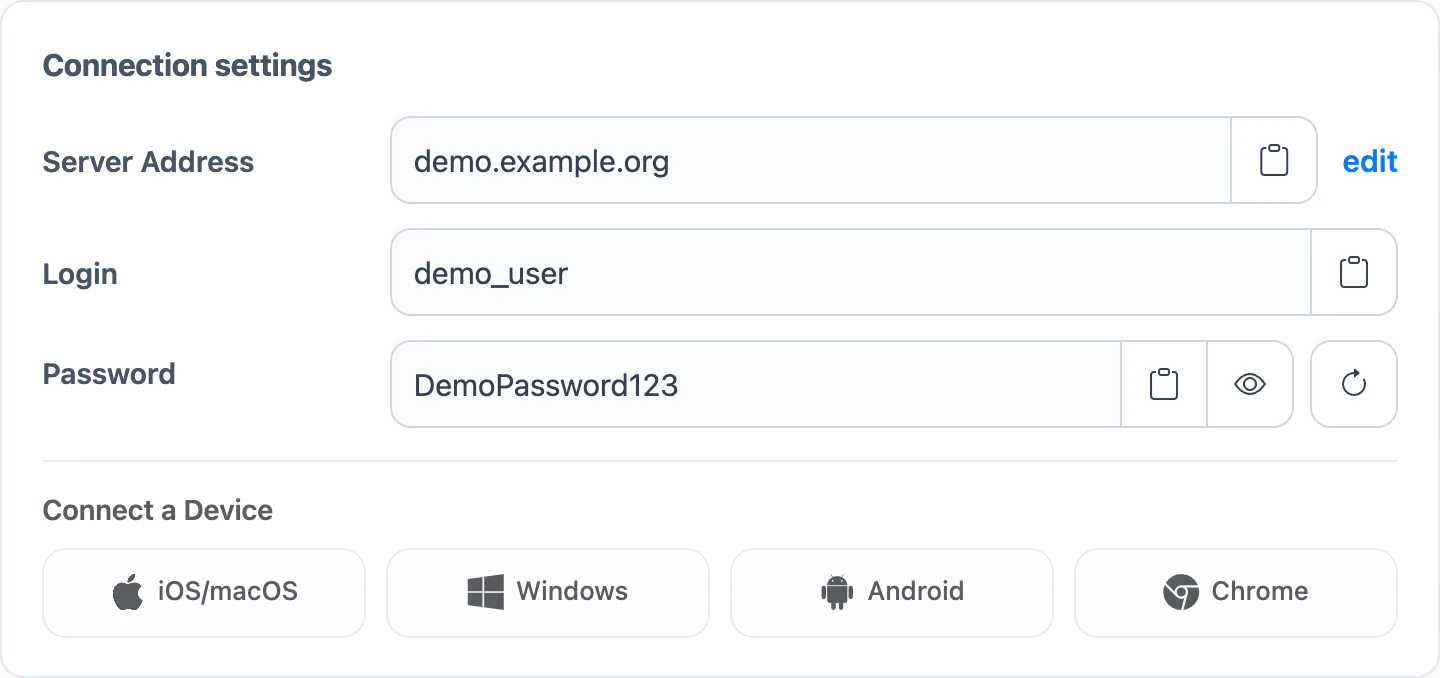
For a quick setup guide in your dashboard, choose your platform under Connect a Device.
Step 1. Add a VPN connection
- On your Windows computer, open Settings → Network & Internet → VPN.
- Select Add VPN in Windows 11 or Add a VPN connection in Windows 10.
- For the provider, select Windows (built-in).

Step 2. Enter connection details
Copy the server address, login and password from Connection settings in your dashboard and paste them into the VPN settings in Windows. Fill in the remaining fields using the table.
| Field on your device | What to enter |
|---|---|
| VPN provider | Windows (built-in) |
| Connection name | Any value |
| Server name or address | Copy Server Address from your dashboard |
| VPN type | IKEv2 |
| Type of sign-in info | User name and password |
| User name | Copy Login from your dashboard |
| Password | Copy Password from your dashboard |
On your own computer, you can save your username and password so you do not have to enter them each time. On a shared computer, leave these fields blank — Windows will ask for them when you connect.
Step 3. Connect
- Select Save.
- Select the connection you created in the list and click Connect.
- If Windows asks for account details, enter the username and password from Connection settings in your dashboard.
- Wait for the status to change to Connected.
If it does not connect
- The username or password is rejected
- Remove the saved values and copy them from Connection settings in your dashboard again, preserving capitalization.
- A certificate or server verification error appears
- Check the server address and turn on automatic date and time in Windows.
- The settings cannot be changed
- An organization may manage network settings on a work or school computer.
If the problem continues, email support@dostup.io. Include the Windows edition, version number, and full error code.